

noindex directive, detects a different canonical URL, decides not to add it to the index, or has indexed it but does not consider it relevant enough for your search. The right order is to check robots.txt and the XML sitemap, connect Google Search Console, inspect the exact URL, and fix the reported cause before requesting indexing.Publishing a website does not mean it will automatically appear when someone searches for your products or services. Before Google can show a page, it must discover the URL, crawl it, process its content, decide whether to add it to the index, and then compare it with other pages for each query.
That is why “why is my website not showing up on Google?” can describe two different problems: the page is not indexed, or it is indexed but does not rank for the terms your customers use. Configuring robots, sitemaps, and Search Console helps diagnose the first situation. An ongoing SEO strategy also addresses the second.
First, determine whether this is an indexing or ranking problem
Run an initial check in Google with site:yourdomain.com. You can also search for the full URL or the exact brand name. If pages from the website appear, Google knows about at least part of the domain. If the site appears for the brand but not for queries such as “employment lawyer in Miami” or “accounting software for small businesses,” the main problem is no longer inclusion in the index. It is the ability to compete for those searches.
The site: operator is not a complete inventory and does not replace Search Console data. To diagnose one page, use URL Inspection. To understand the website as a whole, review the Page indexing report.
| Situation | What it means | First step |
|---|---|---|
| No URLs appear | Google may not know about the site, or a sitewide block may exist. | Check robots, noindex, the sitemap, and the Search Console property. |
| The homepage appears, but internal pages do not | Discovery, internal linking, the sitemap, or page indexability may be failing. | Inspect one specific internal URL. |
| The brand appears, but services do not | The site is indexed but is not yet competitive for those queries. | Analyze intent, content, architecture, authority, and competitors. |
| The page used to appear and then disappeared | A technical change, migration, outage, different canonical, or loss of relevance may be involved. | Compare dates, site changes, and Search Console reports. |
Step 1: check robots.txt and the XML sitemap
Before submitting anything to Google, confirm that the search engine can access your important pages and that the sitemap lists the correct URLs. This prevents you from requesting indexing for a URL that the site itself blocks, redirects, or marks as non-indexable.
Check the robots.txt file
Open https://yourdomain.com/robots.txt. The file should be located at the root of the host and be publicly accessible. robots.txt is mainly used to manage crawling; it is not the right mechanism for removing a page from search results. Google may still learn about a blocked URL through external links, but it will not be able to visit the content and read other directives.
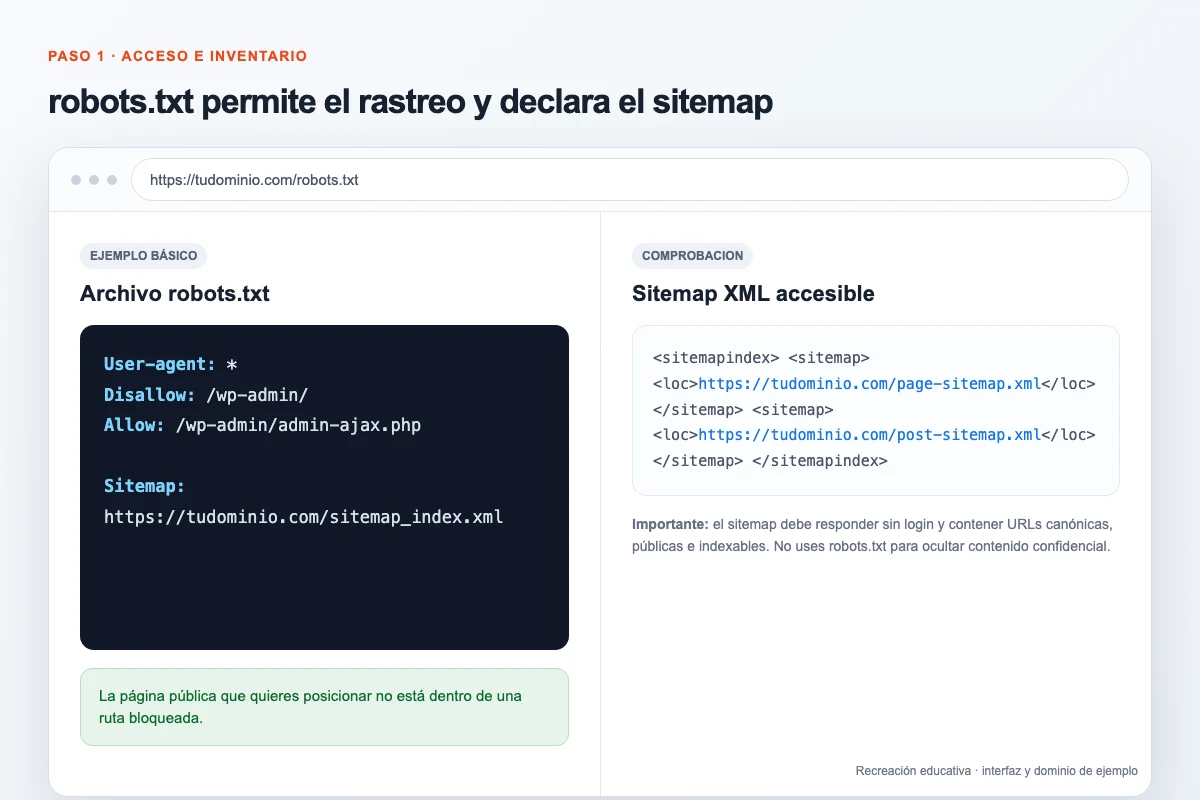
A typical WordPress website might have a configuration like this:
User-agent: *
Disallow: /wp-admin/
Allow: /wp-admin/admin-ajax.php

Sitemap: https://yourdomain.com/sitemap_index.xml
Do not copy this example without checking your platform. The important point is that public routes you want to rank are not covered by a Disallow rule. Avoid broad rules such as Disallow: /, which are common on staging environments, and do not block essential CSS or JavaScript resources that Google needs to understand the page.
Check noindex and the canonical URL
Allowing crawling is not enough. In the page source, look for a tag such as <meta name="robots" content="noindex"> or an HTTP header such as X-Robots-Tag: noindex. If the page should appear in search, remove that directive from the CMS, SEO plugin, or server configuration that generates it.
Then confirm the rel="canonical" value. A service page should usually identify itself as canonical. If it incorrectly points to the homepage, a staging URL, a parameterized version, or another domain, Google may choose that other version as the representative page.
Open and clean up the XML sitemap
Try common routes such as /sitemap.xml and /sitemap_index.xml, or check your CMS documentation. In WordPress, plugins such as Rank Math or Yoast often create a sitemap index. Shopify, Wix, and other hosted platforms can generate one automatically as well.
The sitemap should contain only URLs that meet these conditions:
- They return an HTTP
200status and do not require a login. - They are the canonical version you want Google to show.
- They do not have
noindexand are not blocked from crawling. - They are not redirects, 404 errors, filters, internal searches, or unnecessary duplicates.
- They use the final protocol and hostname, such as HTTPS and the correct
wwwor non-wwwversion.
Common mistake: adding the sitemap address to
robots.txtcan help Google discover it, but it does not fix defective URLs inside the file or force Google to index them.
Step 2: connect the website to Google Search Console
Google Search Console is not required for a website to appear in search, but it is the primary tool for understanding what Google sees, finding issues, and requesting another review. Connecting the site starts with adding a property and proving that you control it.
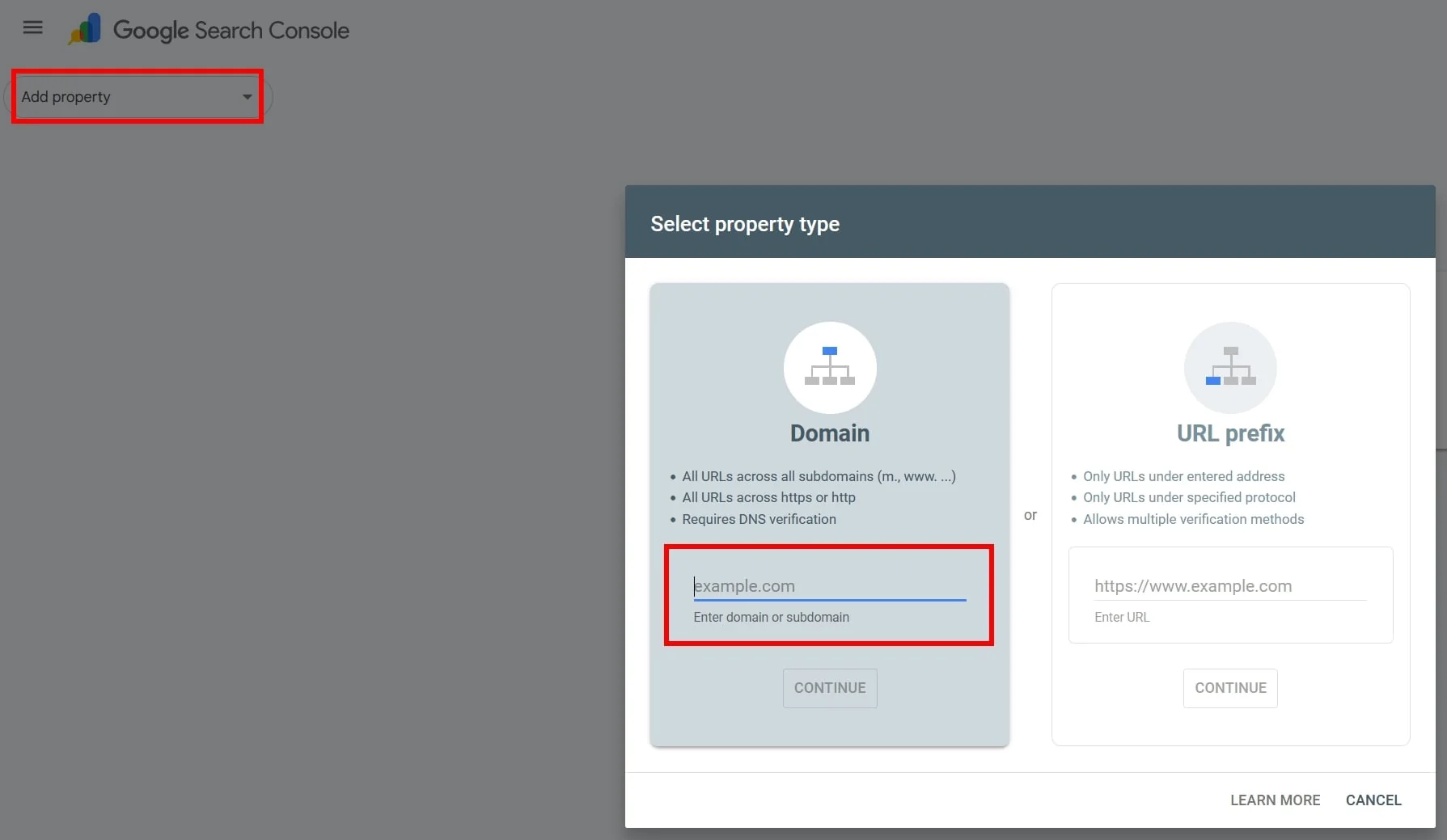
Recommended option: Domain property
- Sign in to Search Console with the account that will manage the project.
- Open the property selector and choose Add property.
- Select Domain and enter only the domain, for example
yourdomain.com, without a protocol or path. - Copy the verification TXT record provided by Google.
- In the domain’s DNS provider, create a TXT record for the root host and paste the exact value.
- Save the record, return to Search Console, and click Verify. DNS propagation may take some time.
A Domain property covers HTTP, HTTPS, and all subdomains. If you cannot access DNS, a URL-prefix property offers other verification methods, such as an HTML file or meta tag, but it covers only the exact prefix you add. Do not remove the verification method after connecting the property: Search Console checks it again periodically.
Step 3: submit the sitemap in Search Console
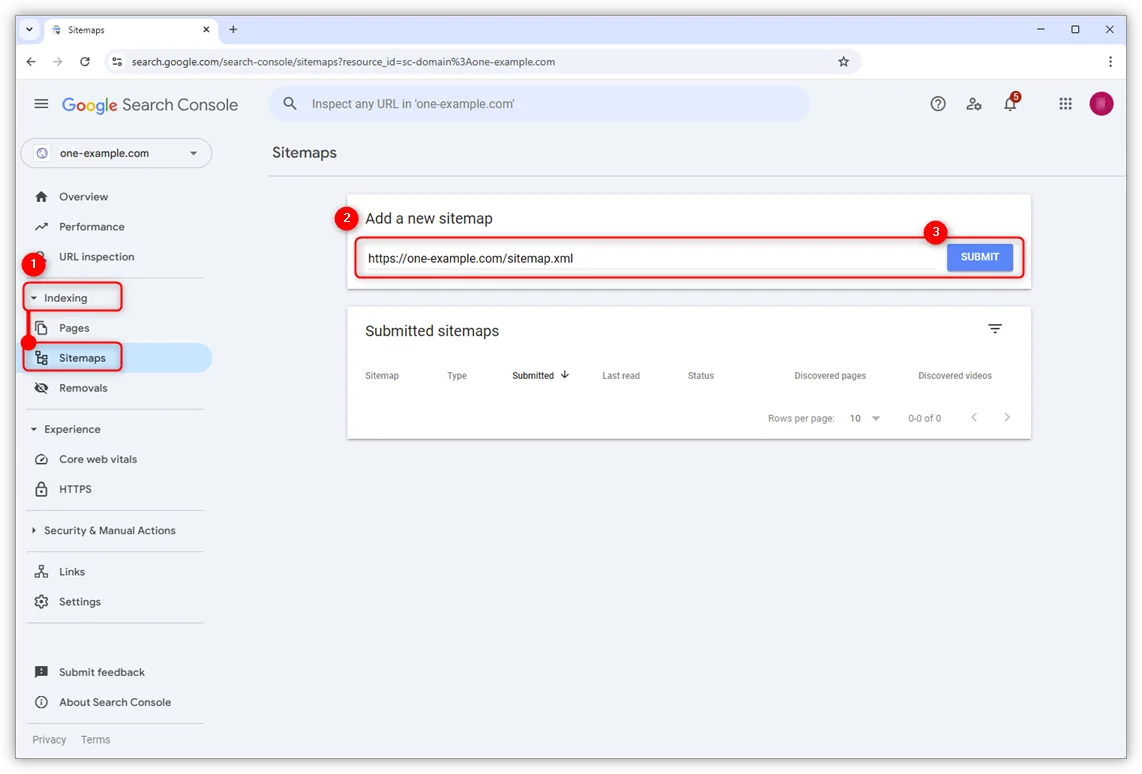
- Select the correct property.
- Under Indexing in the menu, open Sitemaps.
- Under Add a new sitemap, enter the exact path, for example
sitemap_index.xml. - Click Submit and review the status.
- If an error appears, open the details, fix access, formatting, hostname, or redirects, and submit it again.
A successful status means that Google could fetch and process the file. It does not confirm that every URL has been indexed. To find out what happened to a specific page, inspect that URL. To analyze groups of pages, use filters in the Page indexing report.
one-example.com. Image source: one.com Help Center.Step 4: inspect the URL and request indexing
Request indexing only after fixing the problem, not as a substitute for diagnosis. Repeating the request for a blocked, duplicated, or empty page does not remove the cause.
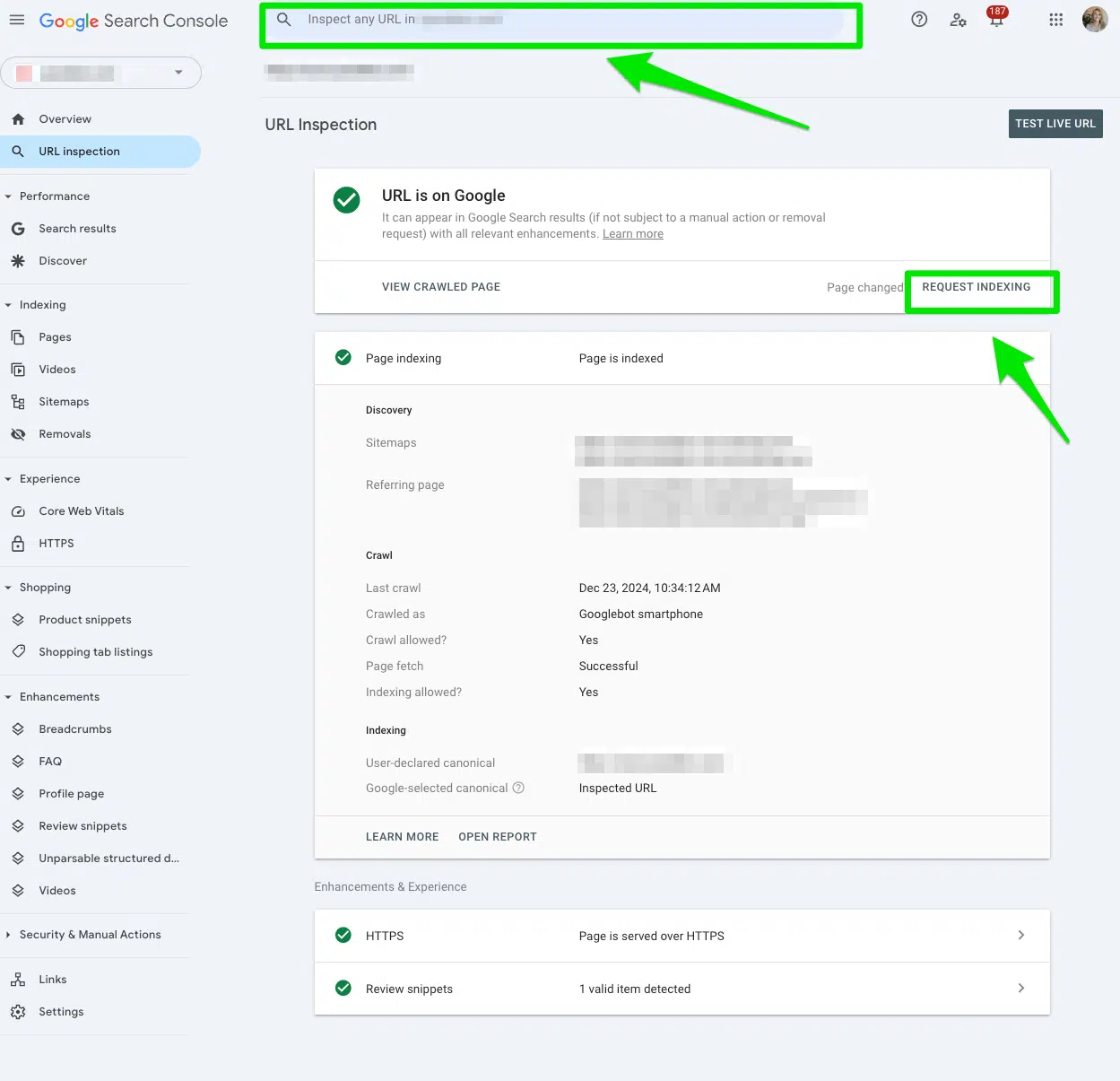
- Copy the full canonical URL of the published page.
- Paste it into the inspection bar at the top of Search Console.
- Check whether the URL is on Google, when it was last crawled, and which canonical Google selected.
- If it is not indexed or you have just fixed it, click Test live URL.
- Confirm that fetching succeeds, indexing is allowed, and the rendered content is what you expect.
- When the live test passes, click Request indexing.
Google may take anywhere from a few days to several weeks to recrawl a URL, and it does not guarantee that the page will be added to the index. Reserve manual requests for new pages, significant changes, or meaningful fixes. Normal discovery should be supported by sitemaps, navigation, and crawlable internal links.
What to check if Google still does not index the page
Search Console will often report a reason. Not every exclusion is an error: a login URL, filter, or duplicate may be correctly excluded from the index. The real question is whether that URL serves a search purpose and should compete.
| Status or signal | What to check | Typical action |
|---|---|---|
Excluded by noindex |
Meta robots, SEO plugin, or HTTP header. | Remove noindex only if the page should be public and indexable. |
| Blocked by robots.txt | Googlebot rules and path matches. | Allow crawling and test again. Do not combine a block with a noindex directive that Google needs to read. |
| Discovered – currently not indexed | Internal links, sitemap, server capacity, duplication, and actual priority. | Integrate the URL into the site architecture and improve its value; avoid producing hundreds of weak pages. |
| Crawled – currently not indexed | Thin, repetitive, scaled, or undifferentiated content. | Improve, consolidate, or remove the URL based on the intent it should satisfy. |
| Duplicate or Google chose another canonical | Similar content, parameters, protocol, hostname, and conflicting canonical signals. | Align redirects, canonicals, sitemaps, and internal links with the preferred version. |
| Page with redirect | The destination and any redirect chain. | This is normal when intentional; include only the final URL in sitemaps and internal links. |
| Soft 404 | Missing content, an empty template, or a page that looks like an error despite returning 200. | Provide useful content or return the correct HTTP status. |
| Server, DNS, or access error | 5xx status codes, response times, firewall, CDN, and Googlebot availability. | Fix the infrastructure and confirm a successful fetch with the live test. |
If the page is indexed, why does it not appear for your services?
Being indexed only makes a page eligible to compete. It does not guarantee a visible position. Google compares relevance, usefulness, quality, context, experience, and other signals for each search. A page can appear when you search its exact URL and remain far from page one for a competitive commercial term.
The page does not match search intent
A generic homepage rarely replaces a specific page for each core service. Research how your audience describes the need and build a URL that explains scope, process, decision criteria, evidence, and the next step without relying on empty claims.
The content is thin, duplicated, or undifferentiated
Copying supplier descriptions, creating nearly identical location pages, or publishing articles without first-hand expertise makes it harder for Google to identify a clearly useful result. Consolidate duplicates and add answers, examples, data, methodology, or verifiable experience.
Site architecture and internal links are weak
If an important page receives no links from navigation, categories, or related content, Google may take longer to discover it or interpret it as a low-priority URL. Use crawlable HTML links, descriptive anchor text, and an understandable hierarchy.
The website has technical or experience problems
Incorrect HTTP statuses, incomplete rendering, slow performance, mobile instability, blocked resources, or a migration without redirects can reduce Google’s ability to crawl, understand, and use the site. Measure the solution on real pages rather than relying on a single test score.
The site lacks authority and topical continuity
In competitive markets, publishing a page once is not enough. The website needs to cover related questions, keep information current, connect useful content, and earn legitimate mentions. That progress is built and measured over months.
Why ongoing SEO goes beyond “indexing the website”
A technical fix can unblock crawling in a day, but sustainable visibility requires a continuous system. Search behavior changes, competitors appear, new URLs are published, older pages lose performance, and the business adjusts its offer. Without monitoring, orphan pages, outdated content, and conflicting technical signals can accumulate again.
An ongoing SEO service should connect at least five areas:
- Technical health: HTTP statuses, robots, canonicals, sitemaps, rendering, performance, and indexing alerts.
- Real demand: Search Console queries, keywords, intent, market conditions, and commercial opportunities.
- Content: creating, updating, consolidating, and improving pages with a defined purpose.
- Architecture and authority: internal links, hierarchy, mentions, and assets worth citing.
- Measurement: impressions, clicks, queries, positions, leads, and sales, while distinguishing correlation from proven impact.
At SEOMOS, we use Search Console as operational evidence, not as a checklist of buttons. We prioritize pages that can contribute to the business, document changes, and evaluate whether visibility turns into opportunities. If you need to move from a one-time fix to a continuous process, tell us what is happening with your website.
Checklist: review the problem in the right order
- Confirm whether the URL is indexed in Search Console, and use
site:only as a preliminary signal. - Open
/robots.txtand verify that the important path is not blocked. - Check meta robots,
X-Robots-Tagheaders, HTTP status, and canonical URL. - Open the sitemap and confirm that it contains the correct canonical URL.
- Add and verify the appropriate Search Console property.
- Submit the sitemap and fix any fetch or processing errors.
- Inspect the exact URL and run the live test.
- Request indexing only after the page is accessible, canonical, and useful.
- If it is indexed but has no visibility, improve intent alignment, content, internal linking, experience, and authority.
- Measure queries, clicks, and conversions regularly to decide what to improve next.
Official sources consulted
- Google Search Central introduction to robots.txt.
- Build and submit a sitemap.
- Add a website property to Search Console.
- Verify your site ownership.
- Search Console Sitemaps report.
- Inspect and troubleshoot a page.
- Ask Google to recrawl your URLs.
- How Google Search works.
Frequently asked questions about websites not showing up on Google
How long does it take for a website page to appear on Google?
There is no guaranteed timeframe. A URL may be crawled within a few days or take several weeks. Speed depends on discovery, links, sitemaps, site capacity, and Google’s evaluation. Requesting indexing communicates a change, but it does not force inclusion.
Should I allow everything in robots.txt to appear on Google?
No. You can block areas with no search value, but important public pages and the resources needed to understand them should remain crawlable. Review each rule in the context of your site architecture.
Does sitemap.xml make Google index all my pages?
No. A sitemap helps Google discover URLs and communicates which versions you consider canonical, but Google decides what to crawl and index. Keep the file clean and aligned with canonicals, robots directives, and HTTP statuses.
Is Google Search Console required?
It is not required to appear in search, but it lets you verify status, submit sitemaps, inspect URLs, find problems, and measure queries and clicks. Diagnosing indexing without Search Console is far more limited.
Can I request indexing many times?
Repeating the request will not accelerate a page that still has the same problem. Use it after publishing or fixing an important URL, and let sitemaps, navigation, and internal links support normal discovery.
Why does my site appear for the brand but not for my services?
Because being indexed is not the same as ranking. For service searches, you compete on relevance, quality, authority, experience, and context. Analyze the intent and build pages that can satisfy it better.
Are a noindex tag and a robots.txt block the same thing?
No. Robots.txt limits crawling, while noindex tells search engines not to show the content in results. Google must access the page to read noindex, so combining both can prevent it from processing the directive.
Can SEOMOS help me on an ongoing basis?
Yes. We can diagnose indexing and continuously improve technical health, search opportunities, content, internal linking, and performance measurement. Contact us to review the context and define the right scope.